You haven't signed in yet, you can have a better experience after signing in
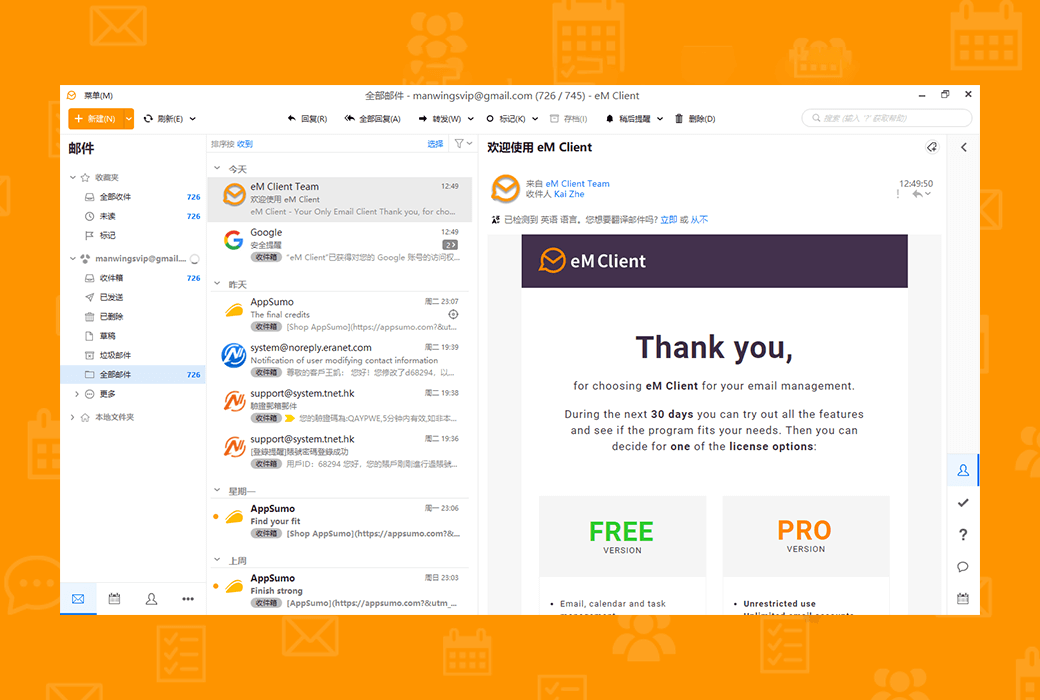
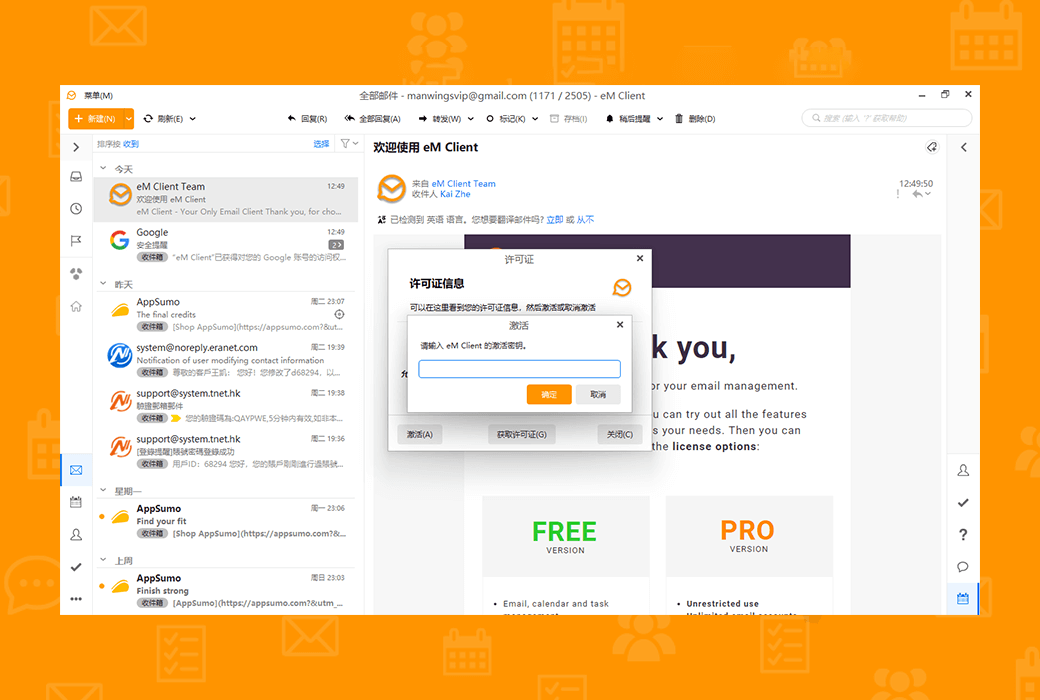
EM Client 10 professional email client software
Activity Rules
1、Activity time:{{ info.groupon.start_at }} ~ {{ info.groupon.end_at }}。
1、Activity time:cease when sold out。
2、Validity period of the Group Buying:{{ info.groupon.expire_days * 24 }} hours。
3、Number of Group Buying:{{ info.groupon.need_count }}x。
Please Pay Attention
1、Teamwork process: Join/initiate a Group Buying and make a successful payment - Within the validity period, the number of team members meets the activity requirements - Group Buying succeeded!
2、If the number of participants cannot be met within the valid period, the group will fail, and the paid amount will be refunded in the original way.
3、The number of people required and the time of the event may vary among different products. Please pay attention to the rules of the event.
Enhance your email
Significantly improve your work efficiency
Get professional email clients for Windows and macOS for professionals and home users.
Break your email routine
EM Client can enhance your email communication and improve your work efficiency. See how it works, within 90 seconds.
Master your workflow
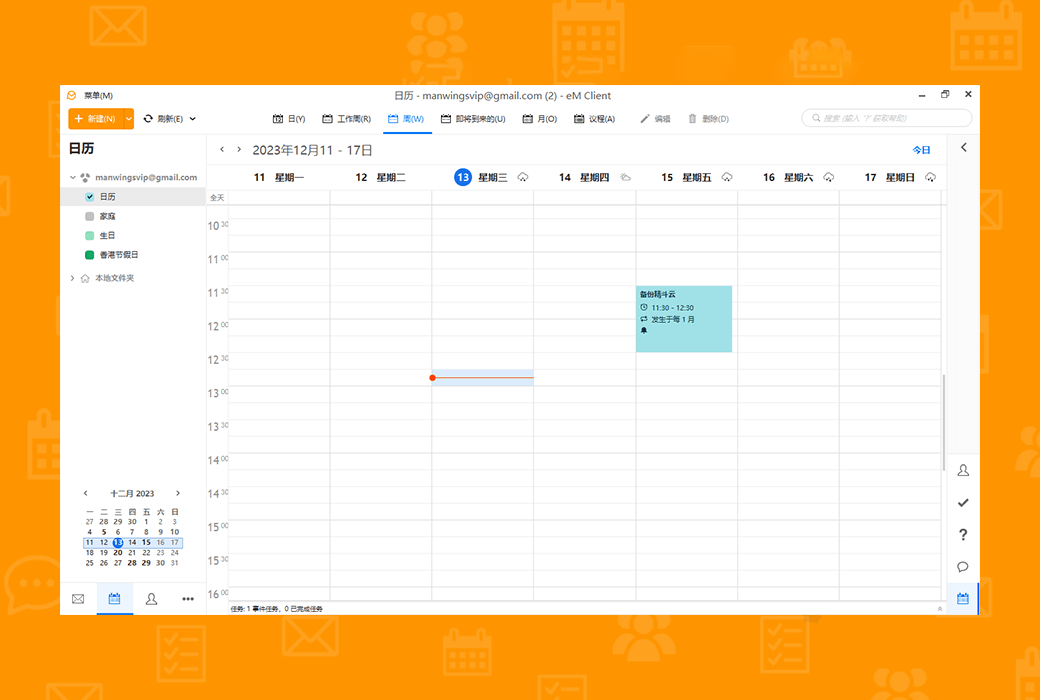
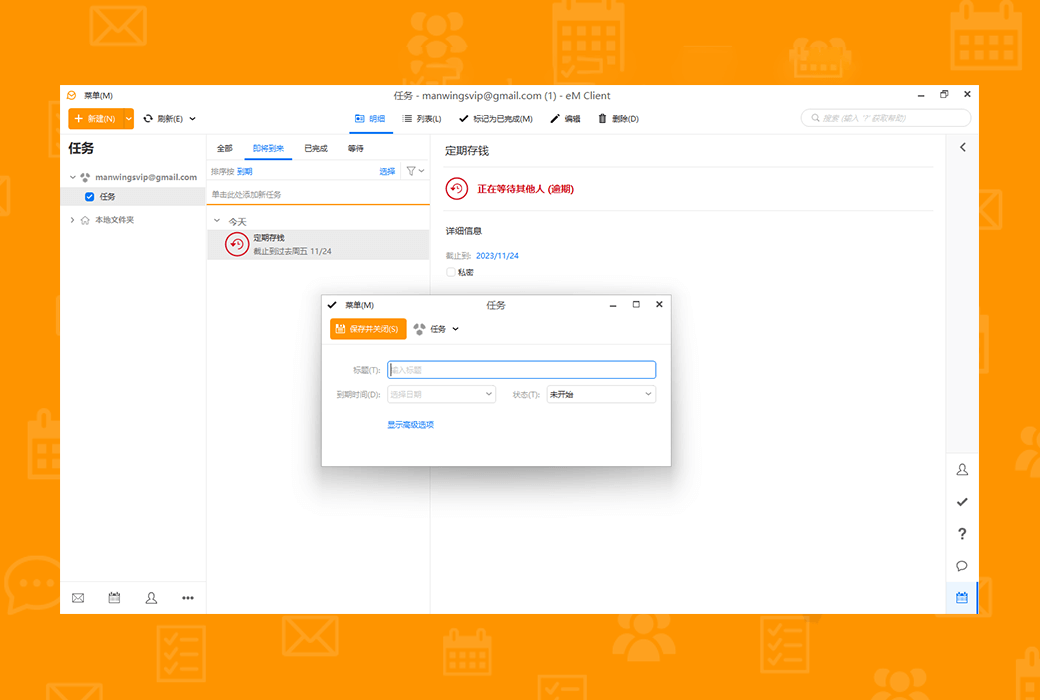
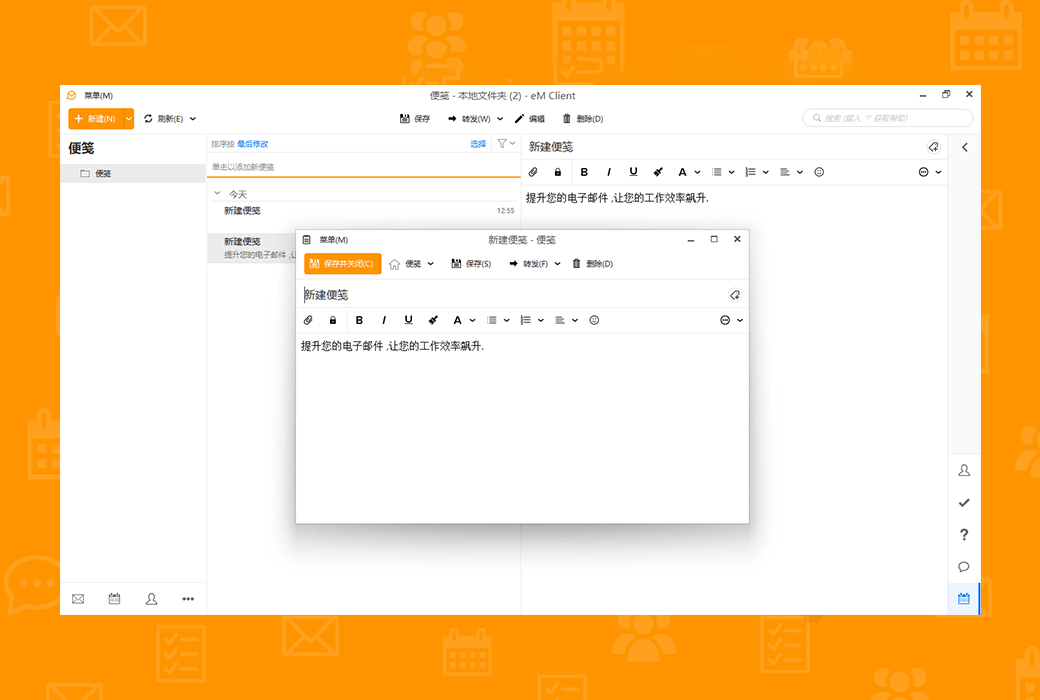
Discover unique tools to improve productivity and better email management.
EM Client covers
All professional communication needs of any team or enterprise. EM Client is the ideal choice for the company.
Explore excellent combinations of features
EM Client is a productivity tool that goes far beyond email functionality.
Fully compatible productivity tools
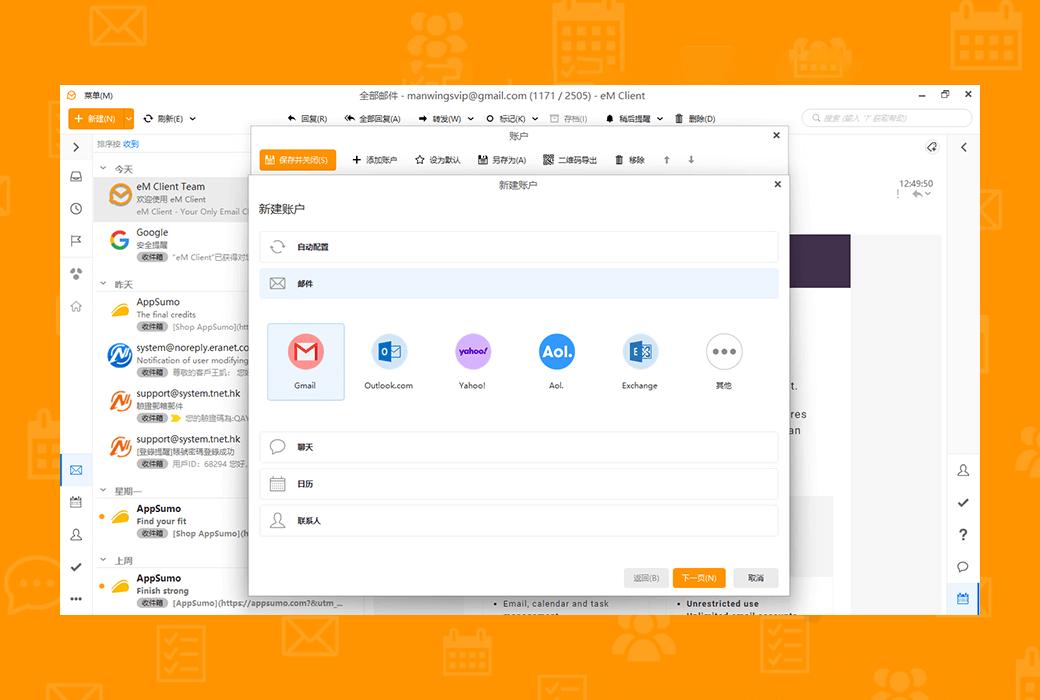
The compatibility of eM Client is unparalleled. Connect to any email service - it will work.
Improve your email efficiency significantly and increase your work efficiency
Get professional email clients for Windows and macOS for professionals and home users.

Official website:https://www.emclient.com
Download Center:https://emclient.apsgo.cn
Backup Download:N/A
Delivery time:Manually process orders online
Operating Platform:Windows、macOS
Interface language:Supports Chinese interface display and multiple language options.
Update Description:Lifetime version:The software manufacturer promises permanent use and free updates. Minor version: supports minor version updates and upgrades, such as v10. x
Trial before purchase:30 day free trial.
How to receive goods:After purchase, activation information will be sent to the email address at the time of placing the order via email.
Number of devices:The personal version can be installed on 3 computers, while the enterprise version depends on the number of licenses purchased.
Replace computer:After software deactivation, activate on a new device.
Activation guidance:To be added.
Special note:To be added.
reference material:https://www.emclient.com/pricing
Any question

Regarding the attachment size limit:
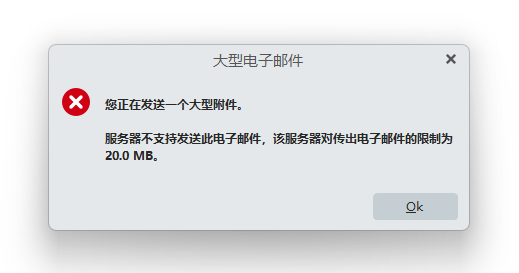
The eM Client itself does not have a limit on attachment size, which is determined by the user's email provider. For example, Gmail limits the attachment size to 25MB.
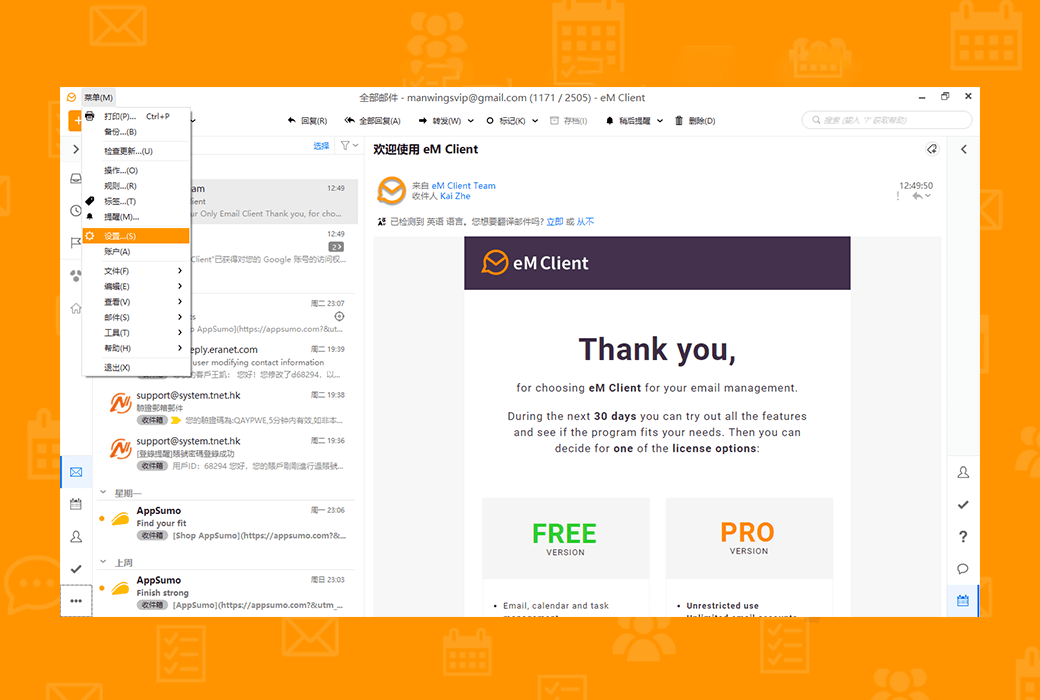
Users can adjust the settings of the eM Client to receive warnings when attempting to send emails larger than a specific size by following these steps: Menu>Settings>General>Confirm>Send> Notify when the message is received. This setting does not prevent users from sending large attachments, but rather confirms whether the user really wants to send when clicking send.
Many email providers do not allow receiving very large attachments, and even if users can send 100MB attachments, the recipient may not be able to receive them. Therefore, the default notification setting is 10MB.
Regarding the stuck email:
If the email gets stuck, you can find it in the local folder's outbox. If local folders are not visible, you can display them by following these steps: Menu>Settings>General>General>Display Local Folder.
Regarding the differences between Outlook and eM Client:
The user mentioned that attachments of 30MB can be sent in Outlook, which may be due to the use of some special technologies or services to bypass the attachment size limit in Outlook. For example, Outlook may upload large files to cloud storage services such as OneDrive and then share the link in an email instead of sending the file directly.
According to Microsoft's support article, the default attachment size limit for Outlook is 20MB, but for certain services such as Outlook. com or Gmail, the combined file size limit is 20MB, while for Exchange accounts (business email), the default combined file size limit is 10MB.
Users can send large files by uploading them to cloud storage services such as OneDrive, Dropbox, iCloud, or Google Drive, and then sharing the link in an email.
Regarding the new features of eM Client:
If the user has already stored the file in a cloud storage service similar to Google Drive, the new feature of eM Client will automatically add a link in the email instead of the actual file.
Summary:
The problems encountered by users in eM Client may be due to the attachment size limitations of email providers, as well as the different ways in which eM Client and Outlook handle large attachments. Users can solve these problems by adjusting the settings of the eM client, sharing links using cloud storage services, or checking for stuck emails in their local folders.
Original post content:https://forum.emclient.com/t/to-big-attachment-mail/67303